Fluid Audio Support
FAQ
Answers to common questions about Fluid Audio products, drivers, software, activation, warranty, and support.
General Questions
Studio Monitors
FX SeriesThe FX80 V2 features updated firmware and equalization settings compared to the V1, providing improved sound performance. The only other change is the updated text on the back panel. Importantly, there are no hardware differences between the V1 and V2.
To align with the launch of the FX50 V2 and ensure a consistent product experience, we updated the remaining stock of FX80 V1 US/EU units with V2 firmware and EQ settings. This allowed customers to benefit from the improvements introduced with the FX80 V2.
All FX80 units with a V2 sticker on the brown shipping box are confirmed to be V2. If you are unsure, please contact us with your unit's serial number, and we will verify it for you.
Fluid Audio monitors with a standby circuit need more than 3 mV for signal detection. To solve this, lower the volume on your monitors and increase the output volume of the connected source.
SRI-2
USB AudioMotherboards, laptops, docking stations, and PCIe to USB 3 adapter cards that use USB 3 controller chips from the following manufacturers are not recommended for use with Fluid Audio SRI-2:
- Texas Instruments
- Etron
- Fresco Logic
- ASMedia
Issues you can experience include no sound or static noise.
Visit the Downloads page and select the correct product and operating system.
User manuals are available on the User Manuals page.
Cubase LE
Cubase LE Setup
SteinbergWe strongly recommend using the Steinberg Download Assistant. Downloading via the Steinberg Download Assistant is faster, more convenient, and more reliable.
You can download it here: Steinberg Download Assistant.
This download page is only intended for cases where the Steinberg Download Assistant cannot be used for technical reasons.
- Download and install the Steinberg Download Assistant: https://www.steinberg.net/go/
- Launch the Steinberg Download Assistant and create an account if needed.
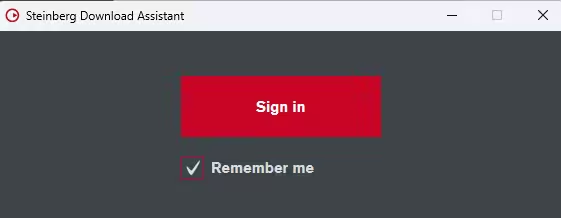
- Authorize the browser to open Steinberg Download Assistant when prompted after logging in.

- Click Enter your Download Access Code in the top left corner and enter the code on the sheet that came with your product.

- In the list on the left, expand Cubase and select Cubase LE 15.

- Download and install the components for Cubase LE 15 on the right.
Note: There are 3 download types for Cubase LE 15:
- Required: Necessary for Cubase LE 15 to run.
- Recommended: Instrument plugins and content sets required for demo projects.
- Optional: Sample packs for enhancing your experience with Cubase LE 15, but not necessary.
- Once the downloads are finished, the installation will run automatically.
- Start Cubase LE 15 and have fun.
Note: Internet connection is required the first time Cubase LE 15 starts for verification purposes. After the first verification, Cubase LE 15 can be used offline.
You have now finished the installation and activation of Cubase LE 15. You can start to record and make music.
You can find the Cubase LE user manual here: Cubase LE User Manual.
Software Support
RealphonesdSONIQ Realphones support is available here: dSONIQ Support.